
OwnMates Feature
Write Comments
Join in on a post. On the website it’s a comment, in the app it’s a reply.
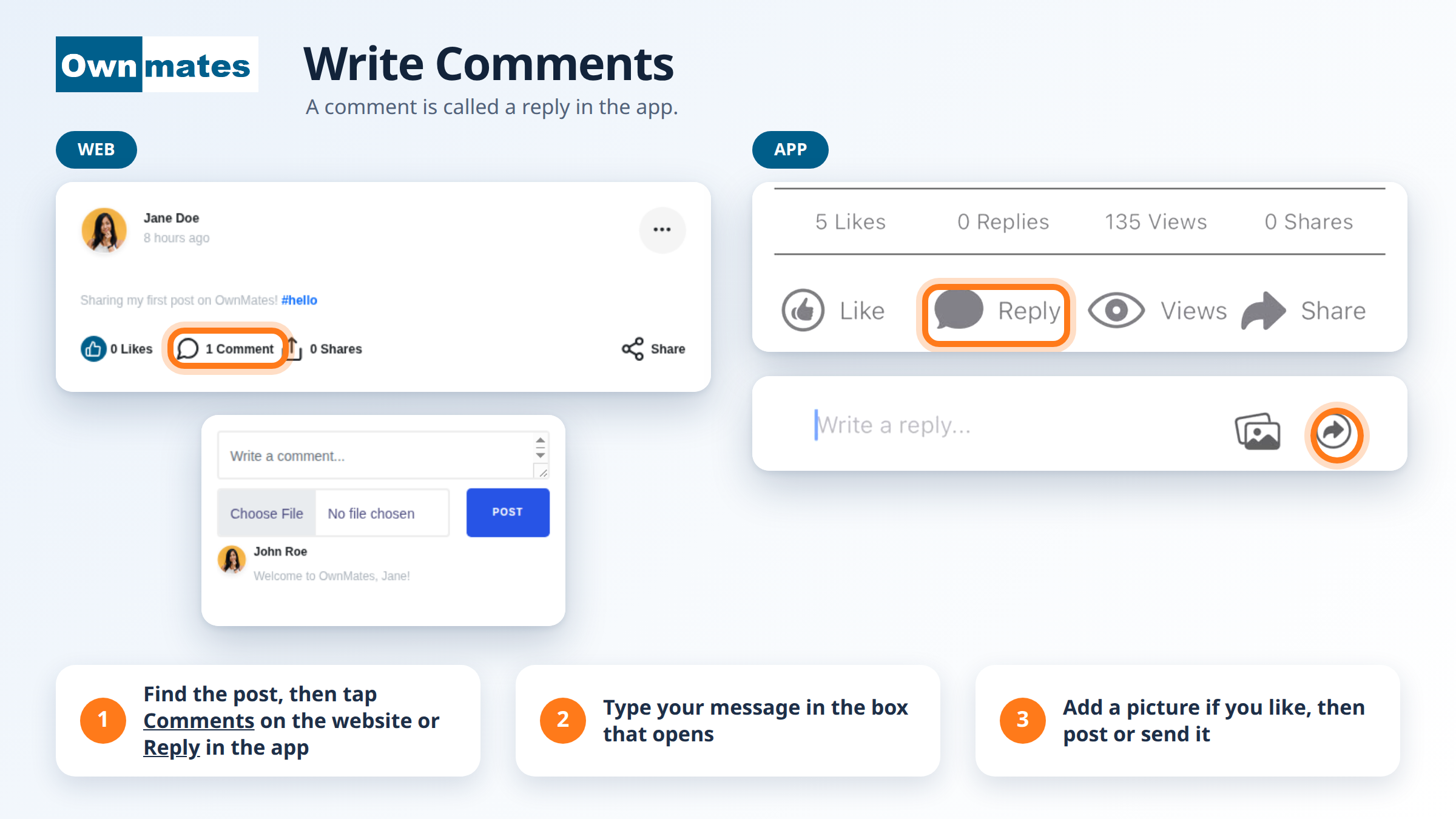
A comment is your answer to someone’s post. Say what you think, say thanks, or ask a question. The person who wrote the post can read it, and so can anyone else who opens the post. The website calls it a comment and the app calls it a reply, but it’s the same thing.
Commenting on the website
- Find the post in your feed.
- Click Comments under it. It’s the speech bubble with a number next to it.
- Type in the Write a comment... box.
- To add a picture or file, click Choose File.
- Click POST. You’ll see “Comment posted successfully!” and the number under the post goes up, for example to “1 Comment”.
Replying in the app
- Find the post. Under it you’ll see Like, Reply, Views and Share.
- Tap Reply.
- Type in the Write a reply... box.
- To add a picture, tap the picture icon next to the box.
- Tap the arrow button to send.
Who can comment on your posts?
That’s up to you. Go to Settings, open Profile Privacy and look for Who can comment on your status?. You can allow Anyone, Friend Only or Only Me.
Quick answers
Why does the app say Reply?
It’s the app’s word for comment. It works the same way.
Can I add a picture to a comment?
Yes. Click Choose File on the website, or tap the picture icon in the app.
Can I change or delete my comment?
See Manage Comments.