
OwnMates Feature
Join a Community
Find a community that matches your interests and join it. On OwnMates, a community is called a Page.
A community is a place for people who like the same thing, like travel, books, music or cooking. OwnMates calls it a Page. Each Page has a name, a category, a description and a list of members, and members can post inside it.
Join from the website
- Open the All Pages list. The See all pages link in the Communities area takes you there.
- Find a Page you like. Each one shows its name and how many participants it has.
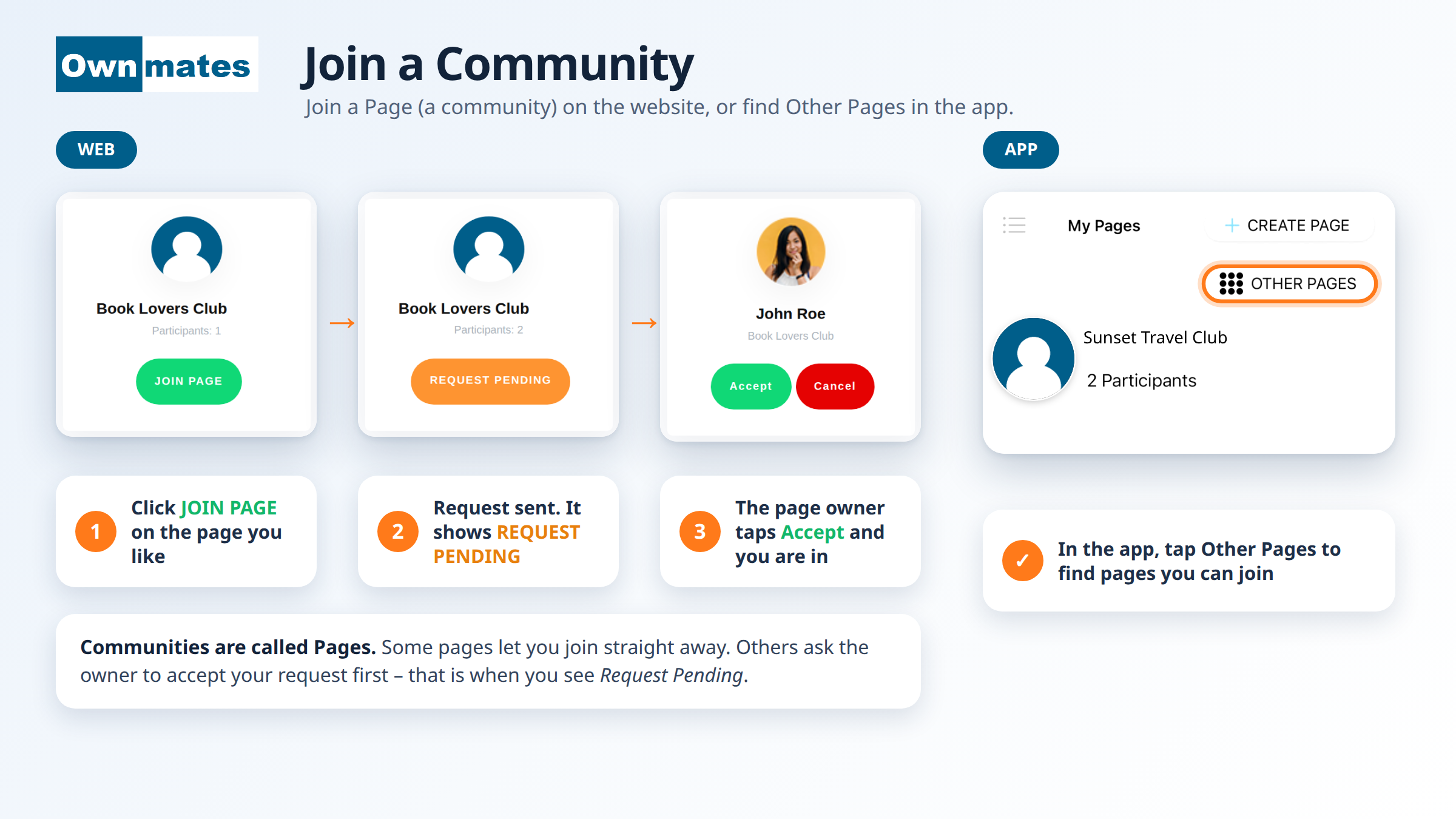
- Click JOIN PAGE. OwnMates shows “Page joined successfully.”
What the buttons mean
- JOIN PAGE: you aren’t a member yet. Click it to join.
- REQUEST PENDING: your request is sent and the Page owner still has to accept it.
- JOINED: you’re a member.
Page owners choose how people join: by simply joining, or by sending a request. If the owner asks for requests, you’ll see Request Pending until they accept you.
If you own the Page
- Open Page Request. Each request shows the member’s name and your Page.
- Click Accept to let them in. OwnMates shows “Member approved successfully.”
- Click Cancel if you’d rather not.
In the app
Open My Pages to see the Pages you made or joined. Tap Other Pages to look at more.
Quick answers
Is a community the same as a Page?
Yes. It’s one thing with two names. The website and the app both say Page.
Why does it say Request Pending?
The owner wants to approve new members. You can take part once they accept you.
How do I leave?
Open the Page and click Exit Page.
Next: Community Posts.