
OwnMates Feature
Send a Message
Write to any member privately, from the website or the app.
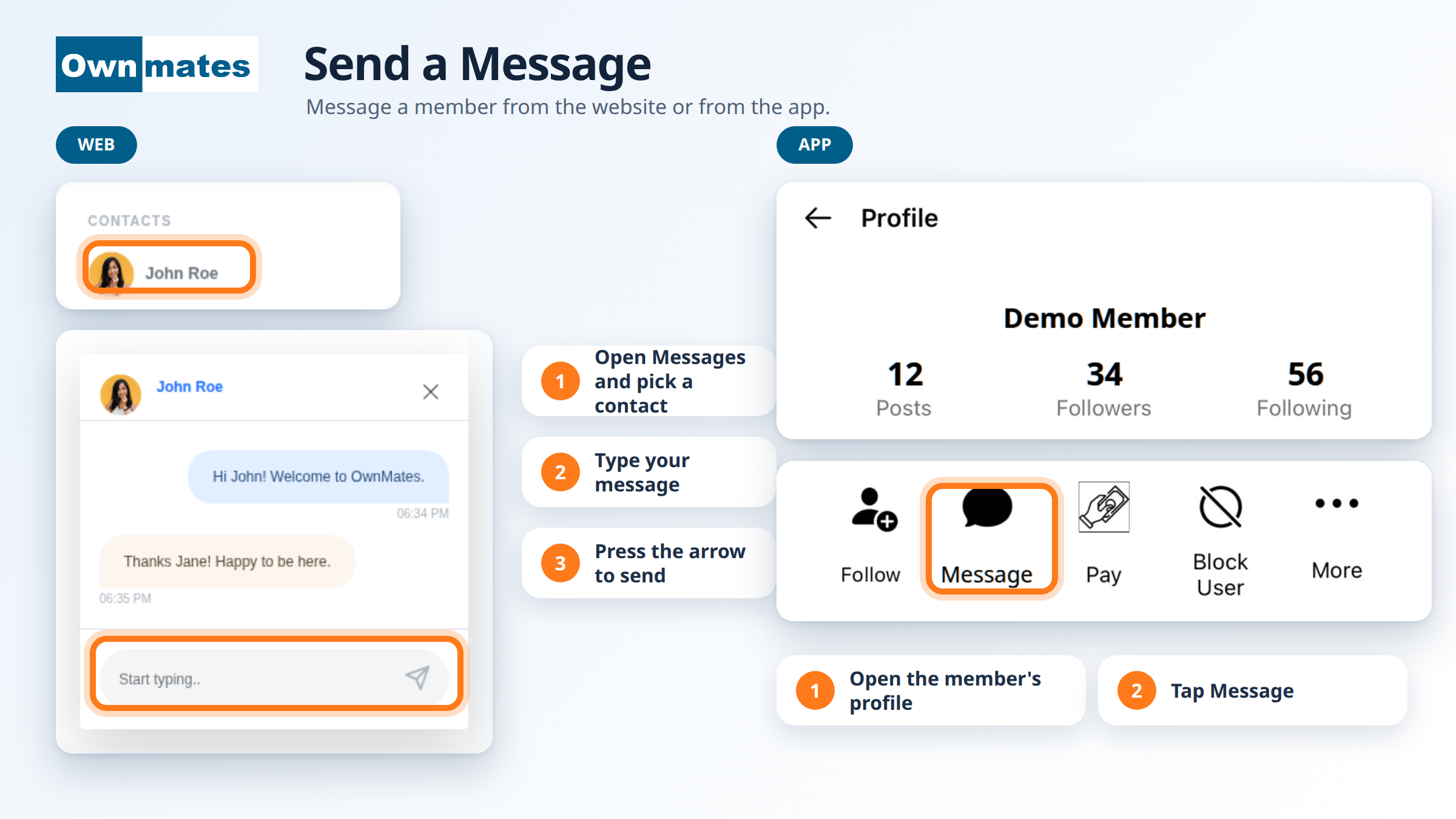
Messages are private chats between you and one other member. You write, they see it in their messages.
On the website
- Log in and click Message in the menu on the left.
- Under Contacts, click the member you want to talk to.
- A chat box opens. Type in the Start typing.. box.
- Click the arrow button to send. Your message shows up in the chat with the time.
On the full chat page you can also send a picture or a file. Use the paperclip button next to the message box.
In the app
- Find the member with the search icon at the top, or open their profile.
- On their profile, tap Message. It sits in the row of buttons with Follow, Pay, Block User and More.
- Write your message and send it.
To read your messages, tap Messages in the bar at the top of the app. On the website, a red number on the message icon tells you how many new messages are waiting.
Who can you message?
Anyone who allows it. Each member picks who can message them in Profile Privacy: Anyone, Friend Only or Only Me. If a member doesn’t allow messages from you, the chat says “You don’t have permission to send messages to this user.” More in Message Controls.
Quick answers
I can’t message someone. Why?
They may have blocked you, or they only accept messages from friends. The chat tells you which one it is.
Can I send a picture?
Yes. Use the paperclip button on the website chat page.