
OwnMates Feature
Message Controls
Two ways to stay in charge of your inbox: block a member, or choose who can write to you.
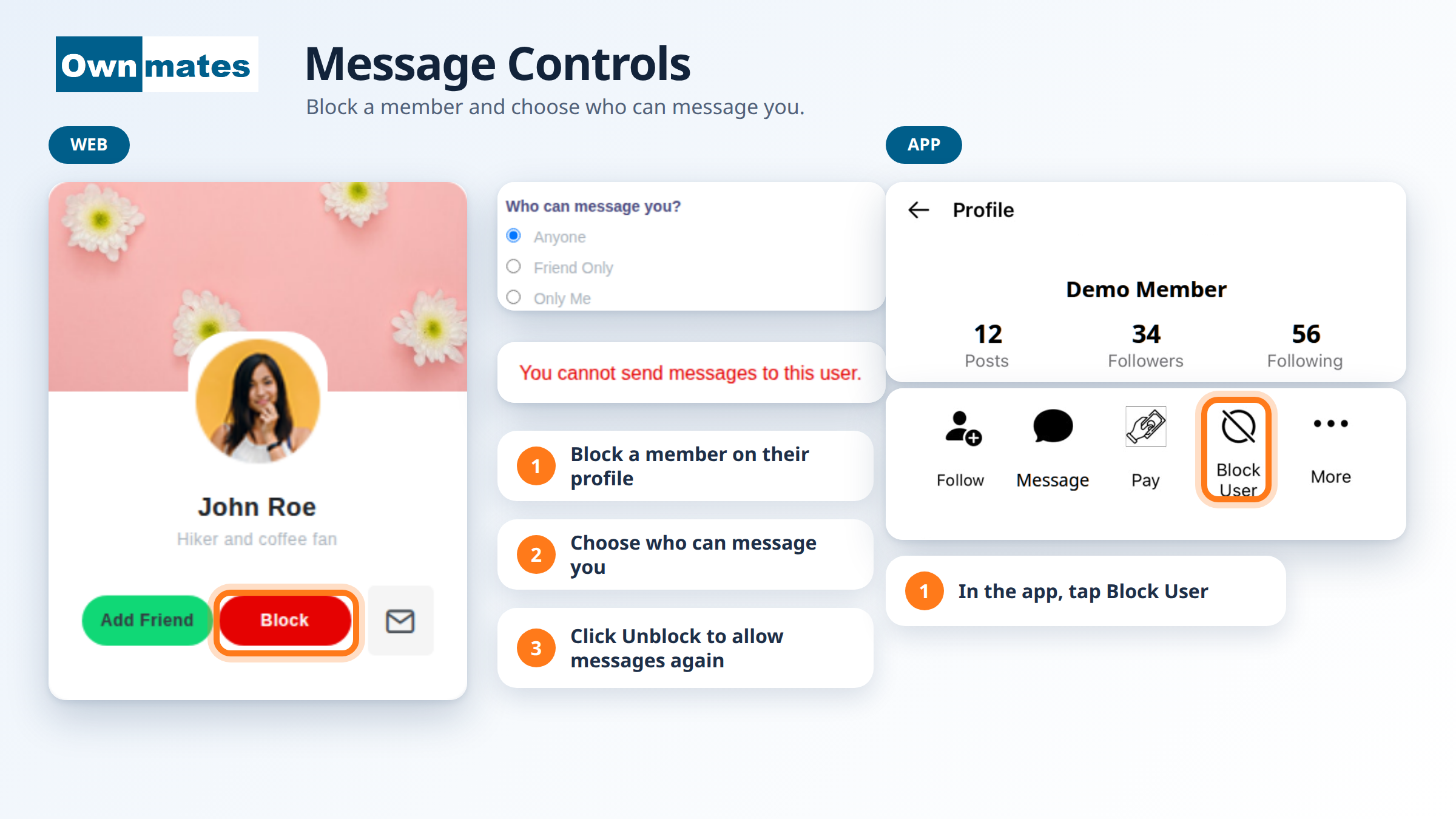
Block a member on the website
- Open the member’s profile. Search Profiles helps you find them.
- Click Block.
- OwnMates shows “User Blocked!” and the button changes to Unblock.
What blocking does
Messages stop in both directions. If you open the chat, it says “You cannot send messages to this user.” and the message box is switched off. The other member sees the same message.
Unblock a member
Open their profile and click Unblock. You can message each other again.
Block a member in the app
- Open the member’s profile.
- Tap Block User. It’s in the row with Follow, Message and Pay.
Choose who can message you
- Open Settings, then Profile Privacy.
- Find Who can message you?.
- Pick Anyone, Friend Only or Only Me.
- Click Save.
- Anyone: every member can message you.
- Friend Only: only your friends can.
- Only Me: nobody else can.
A member who isn’t allowed sees “You don’t have permission to send messages to this user.” in the chat.
Quick answers
How do I stop someone messaging me?
Block them. Click Block on the website, or tap Block User in the app.
Can only my friends message me?
Yes. Choose Friend Only under Who can message you? and save.
Does the person know I blocked them?
When they try to message you, the chat says they can’t send messages to you.
Back to Send a Message.