
OwnMates Feature
Community Posts
Share an update inside a community, and let other members like it, comment and share.
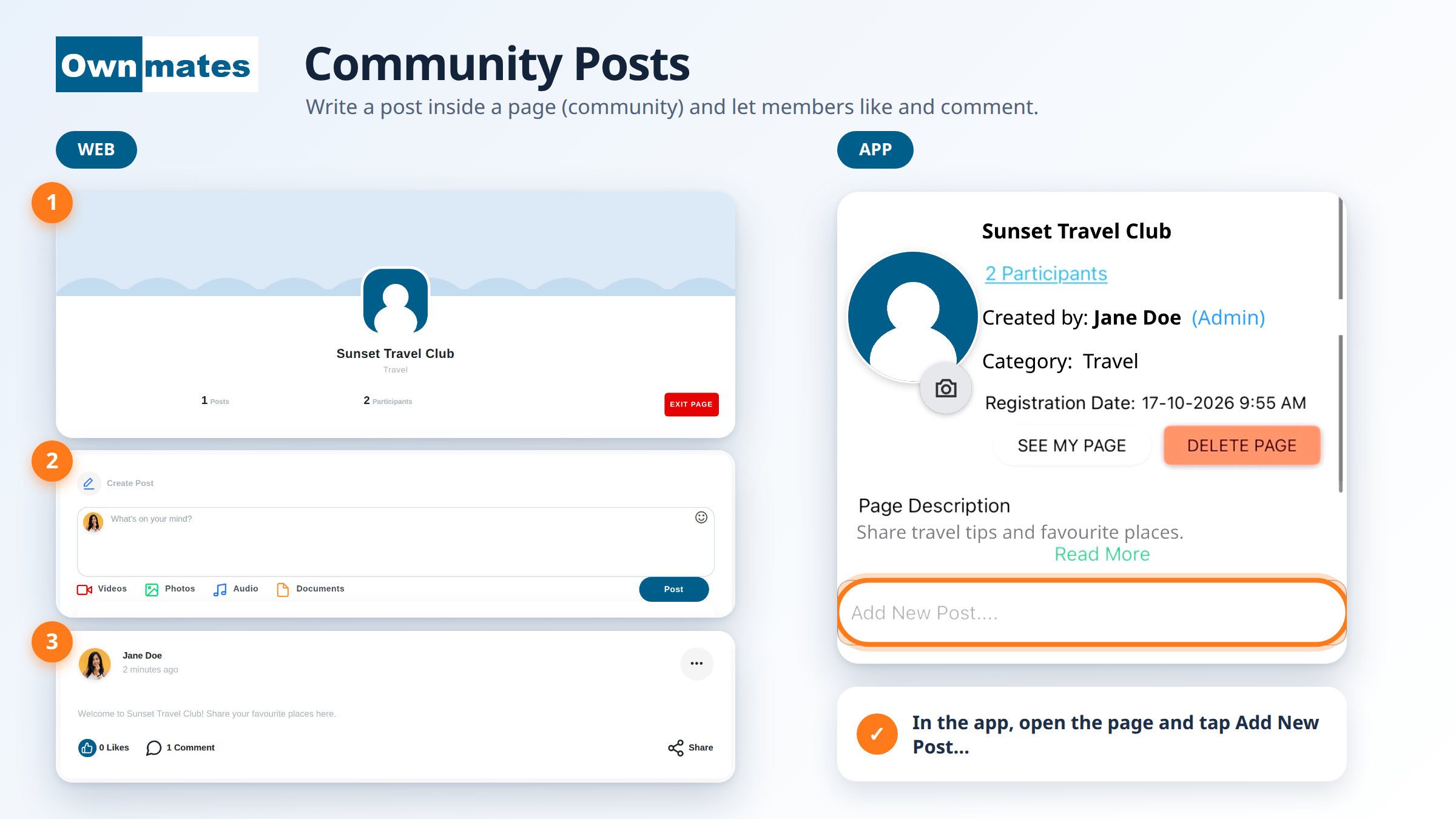
A community post goes inside a community (a Page) rather than on your own profile. Members of the Page can read it, like it and comment. That keeps a conversation about one topic in one place.
What you see on a Page
- The header: the Page picture, its name and category, and the numbers of Posts and Participants.
- Description: what the Page is about.
- Create Post: the box where you write.
- The posts: each shows who wrote it, when, and its Likes, Comments and Share.
Post on the website
- Open a Page you’ve joined. (How to join a community.)
- Click the What’s on your mind? box under Create Post.
- Type your message. You can add Videos, Photos, Audio or Documents too.
- Click Post. It shows up at the top of the Page.
Post in the app
- Open My Pages and tap the Page.
- Tap Add New Post....
- Write your post and send it.
Likes, comments and shares
Under every post you can tap Like, open Comments to read or write one, or press Share. When someone comments, the number next to the speech bubble goes up, like “1 Comment”.
Quick answers
Do I have to join first?
Yes. Join the Page first. If it asks for requests, wait until the owner accepts you.
Can I add a photo or video?
Yes, on the website. Use the Videos, Photos, Audio or Documents buttons under the box.
Where does my post appear?
On the Page you posted in, at the top of the list.