
OwnMates Feature
Create a Post
Share a thought, a photo, a video or a file with your OwnMates friends. It only takes a minute.
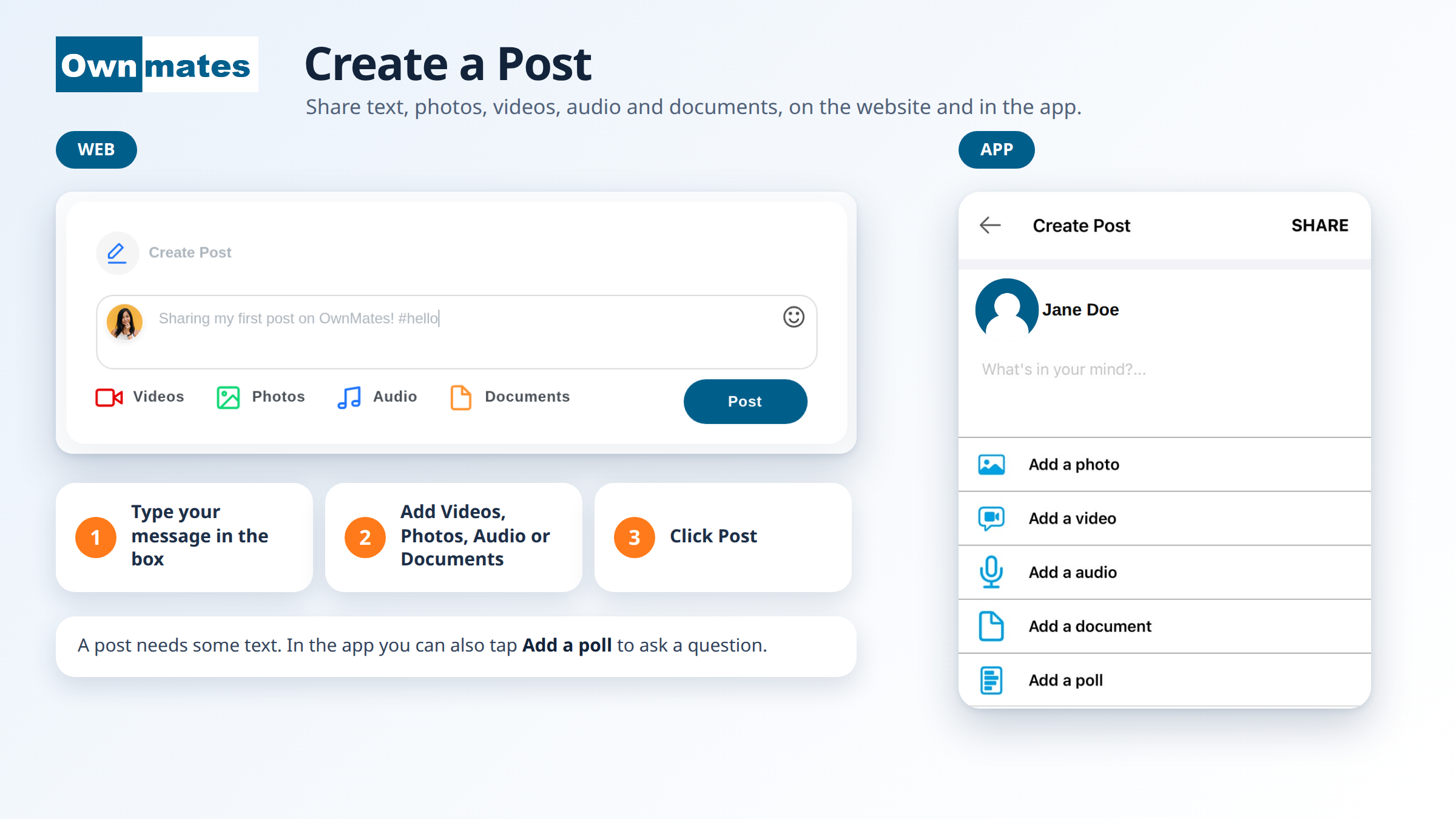
Posting from the website
- Log in and go to the Home page.
- Click the What’s on your mind? box at the top of your feed.
- Type your message. The smiley icon adds emojis.
- To attach something, pick Videos, Photos, Audio or Documents and choose your files. You can pick more than one.
- Click Post.
A post needs some text. If the box is empty, OwnMates asks you to add a description before it will post.
Posting from the app
- Open the Create Post screen.
- Write your message in the box under your name.
- Tap Add a photo, Add a video, Add an audio or Add a document to attach a file.
- Want to ask a question? Tap Add a poll.
- Tap SHARE.
What you can put in a post
- Text and emojis
- Photos and videos
- Audio files
- Documents: PDF, Word, Excel or text files (on the website)
- Hashtags, like #hello
- Polls (in the app)
A post is the quickest way to get noticed on OwnMates. Ask something, show your work or just say hello. Friends can like and comment, and that often turns into a conversation.
Quick answers
My post won’t go through. What’s wrong?
Check that you’ve typed something. A post with no text asks for a description.
Can I add more than one photo?
On the website, yes. Choose several files at once.
Who can comment on my post?
You decide. See Post Privacy.
Next: Post Privacy and Write Comments.