

Ownmates Post

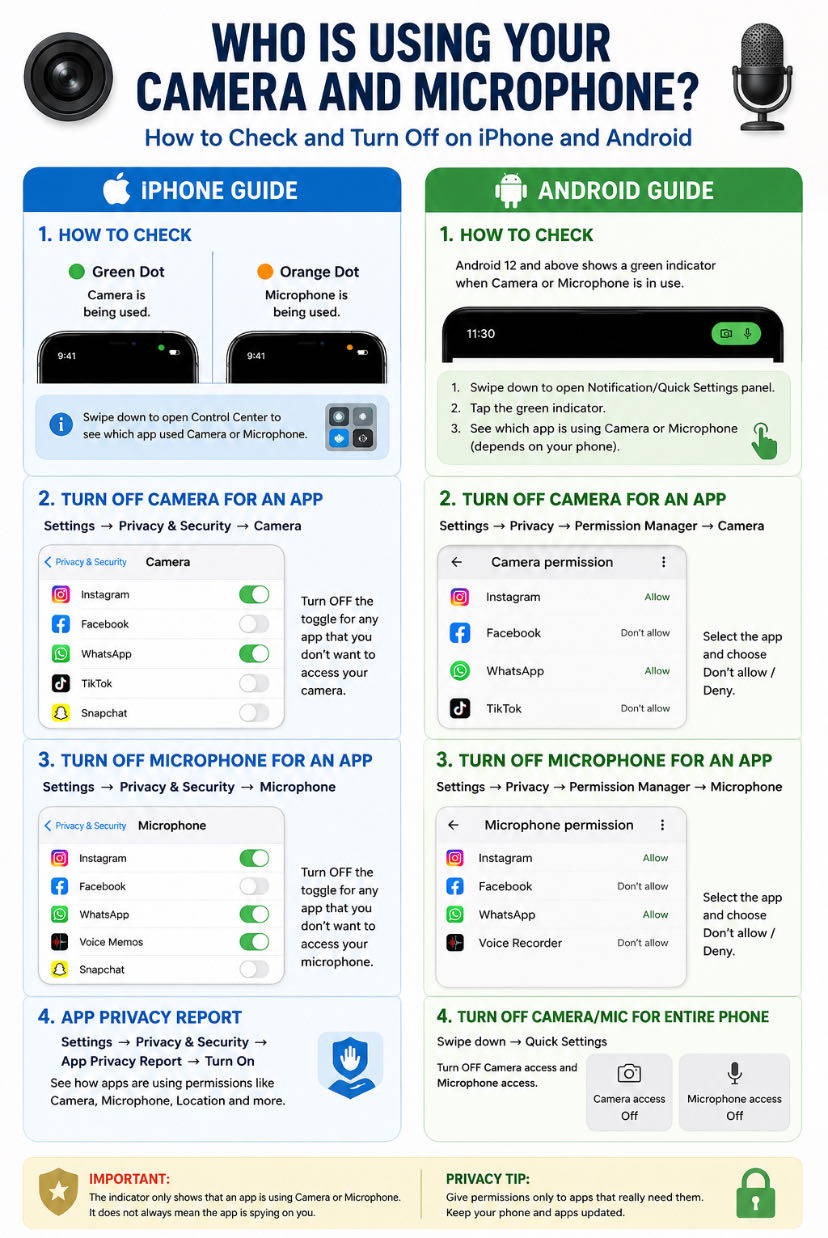
📱 Who Is Using Your Camera and Microphone? How to Check on iPhone and Android
Today, almost every smartphone has apps that need access to the camera and microphone. But if you suspect that an app may be using them without your knowledge, you can easily check and control these permissions.
🍎 How to Check Camera and Microphone on iPhone
📷 Green Dot — Camera Is Being Used
If you see a small green dot at the top of your iPhone screen, it means an app is currently using the camera.
You can also open Control Center to see information about recent camera or microphone access.
🎙️ Orange Dot — Microphone Is Being Used
If you see an orange dot at the top of the screen, it means an app is using the microphone.
🚫 Turn Off Camera Access for an App
Go to:
Settings → Privacy and Security → Camera
Then turn OFF the camera permission for any app that you don’t want to access your camera.
🚫 Turn Off Microphone Access
Go to:
Settings → Privacy and Security → Microphone
Then turn OFF microphone permission for the selected app.
🔍 Check App Privacy Report
If you want to see when apps have accessed sensitive permissions such as the camera and microphone:
Settings → Privacy and Security → App Privacy Report → Turn On App Privacy Report
This can provide additional information about an app’s permission and network activity.
⸻
🤖 How to Check Camera and Microphone on Android
On many devices running Android 12 or later, a green privacy indicator appears when an app is using the camera or microphone.
🟢 Find Which App Is Using It
When the green indicator appears:
1. Swipe down from the top to open the Notification/Quick Settings panel.
2. Tap the privacy indicator.
3. Depending on your phone, you may see which app is using the camera or microphone.
🚫 Turn Off Camera Access for an App
Usually, go to:
Settings → Privacy → Permission Manager → Camera
Select the app and choose Don’t allow / Deny.
🎙️ Turn Off Microphone Access
Go to:
Settings → Privacy → Permission Manager → Microphone
Select the app and choose Don’t allow / Deny.
🔴 Turn Off Camera or Microphone for the Entire Phone
Many Android phones provide Camera access and Microphone access controls in Quick Settings.
Turn these switches OFF to block apps from accessing the corresponding hardware.
If you don’t see these options, tap ✏️ Edit in Quick Settings and look for the Camera and Microphone controls.
⚠️ Important
Seeing a camera or microphone indicator does not automatically mean that an app is spying on you. Many legitimate apps—such as video-calling, camera, voice-recording, and social-media apps—normally need these permissions.
First, check which app is accessing the camera or microphone and why.
🔐 Simple Privacy Tip
Keep Camera and Microphone permissions OFF for apps that don’t need them.
Also, uninstall unknown or suspicious apps and keep your phone’s operating system and apps updated.Only the Google Play Store and Apple App Store can ensure that an application is completely authentic.


Comments
No comments yet.